
Qube — Home of Modern Creatives
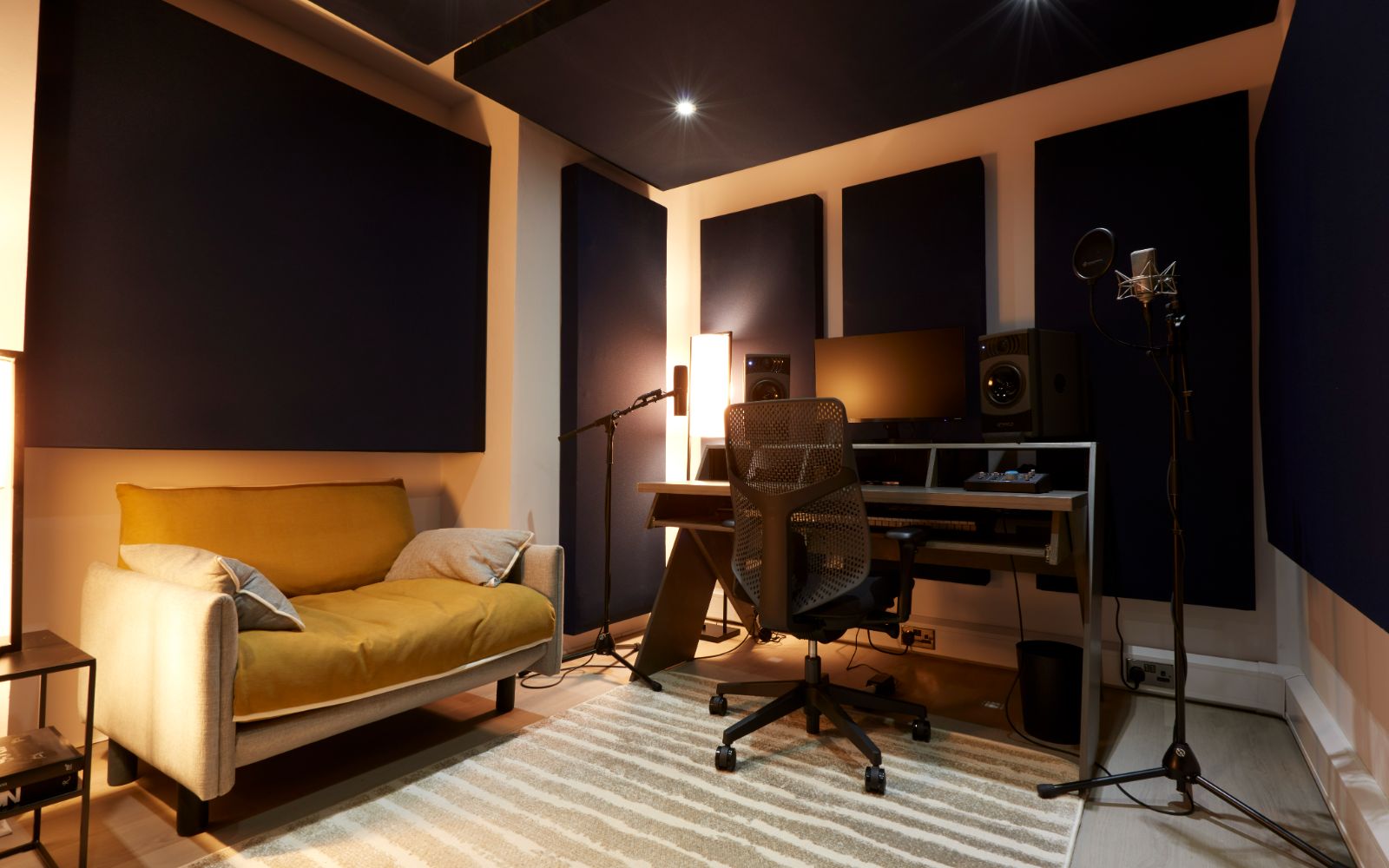
Qube Hackney has 4 member studios across production, DJ, content and podcast — all bookable 24 hours a day.
For a full equipment list for each room, refer to the studio descriptions on the Bookings page in the Qube app.
For instructions on how to get started in our podcast, DJ and production rooms, please refer to our tech guides below.
Chat to Quinn in the Qube app or Member Portal. If Quinn can't resolve it, your query goes straight to the team and someone will follow up as soon as possible.
Three things first — they fix most problems in under a minute.
Production rooms
Find your problem and work down the list — most things clear by step two or three.
Setting up and controlling volume+
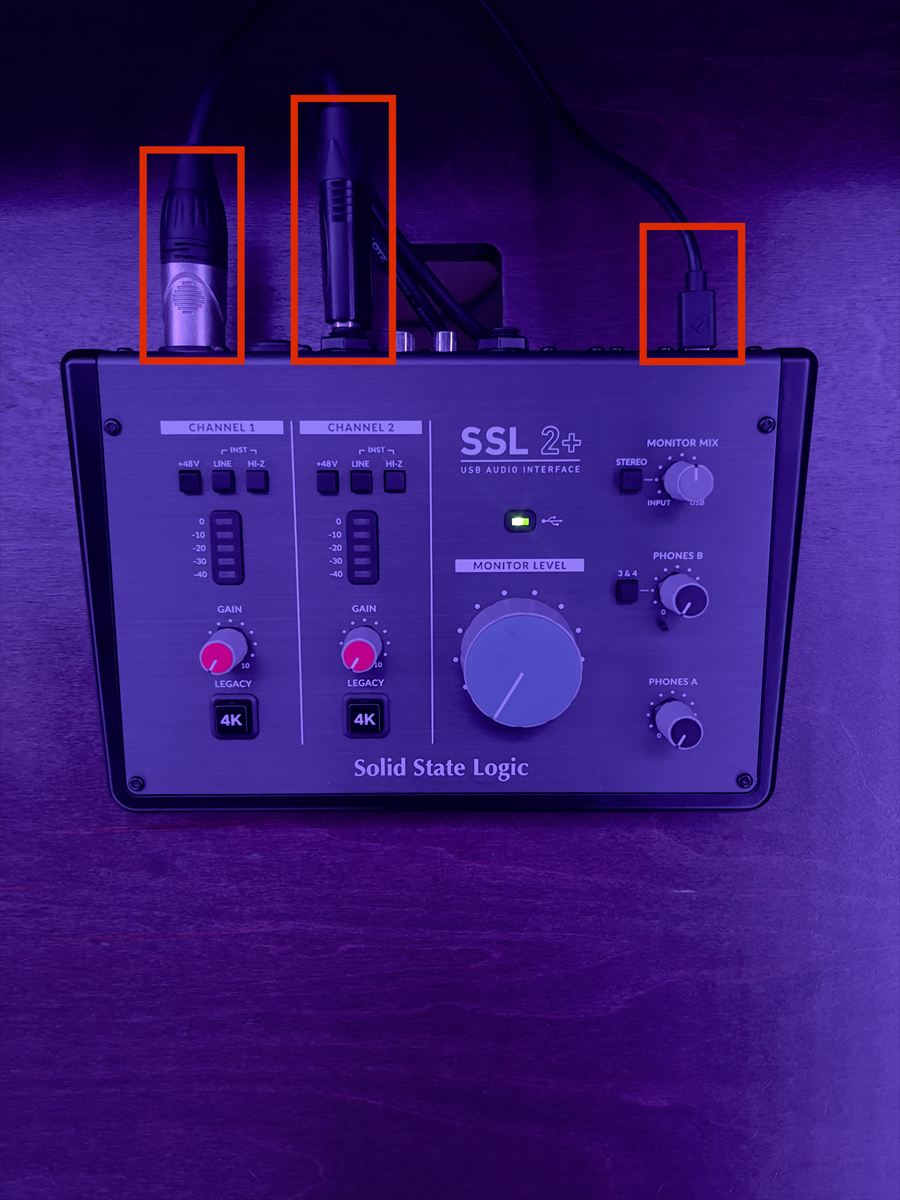
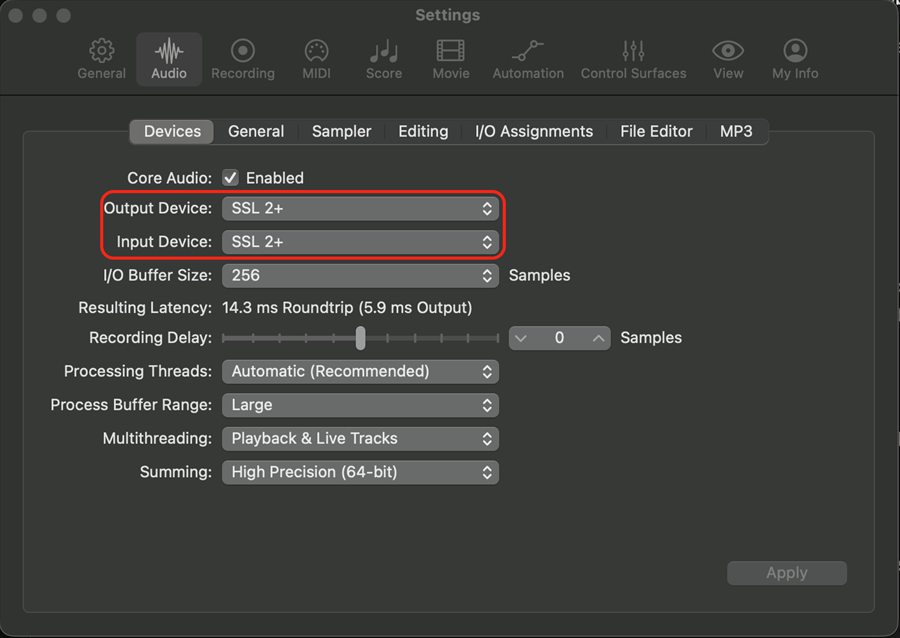
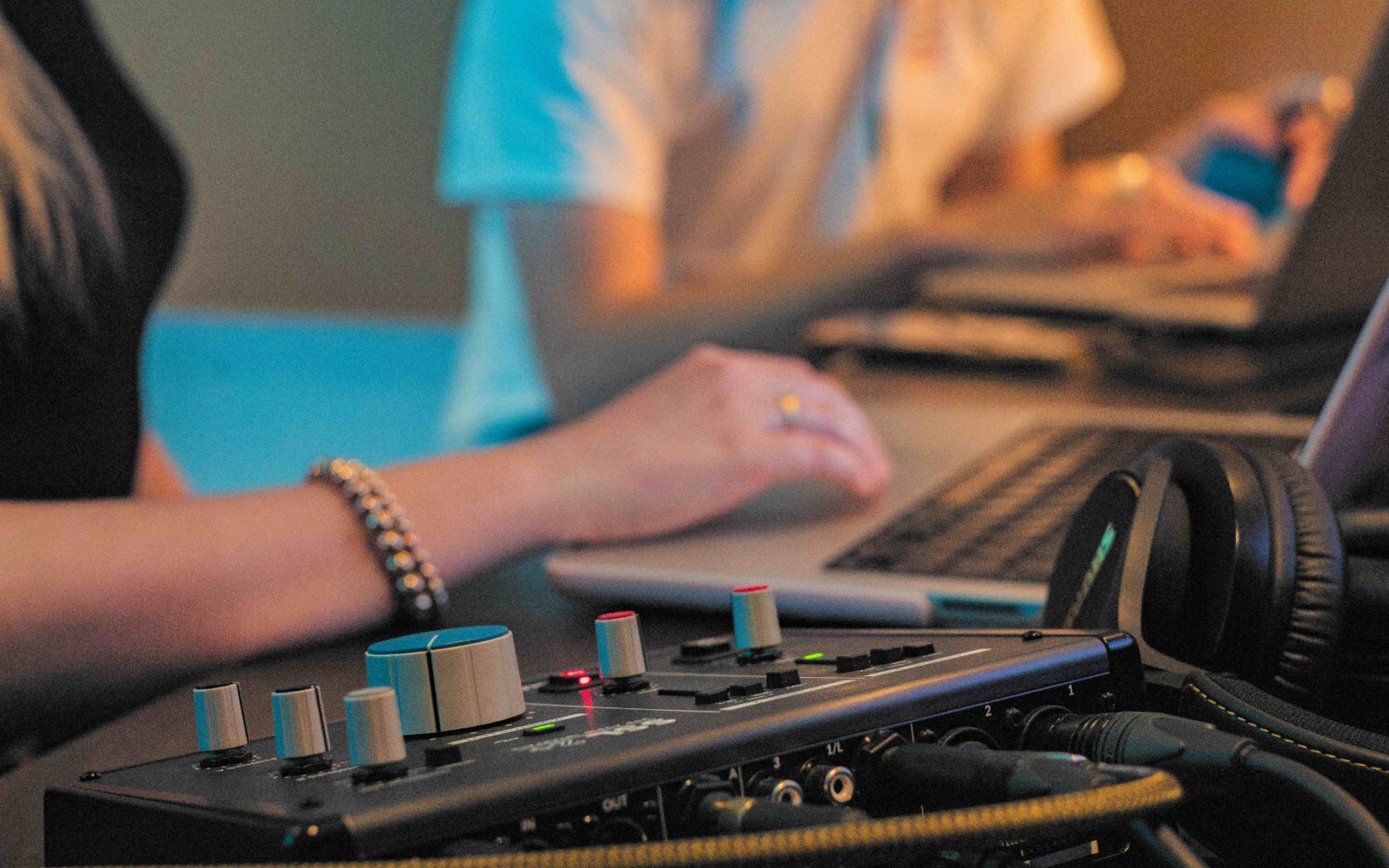
On a Mac it's plug and play — connect your laptop to the hub in the middle of the desk and you're away. On Windows or Linux, download the SSL 2+ driver first (or SSL 12 if you're in Studio 1 or 6).
Volume is the big blue Monitor Level dial on the SSL interface — right for louder, left for quieter.
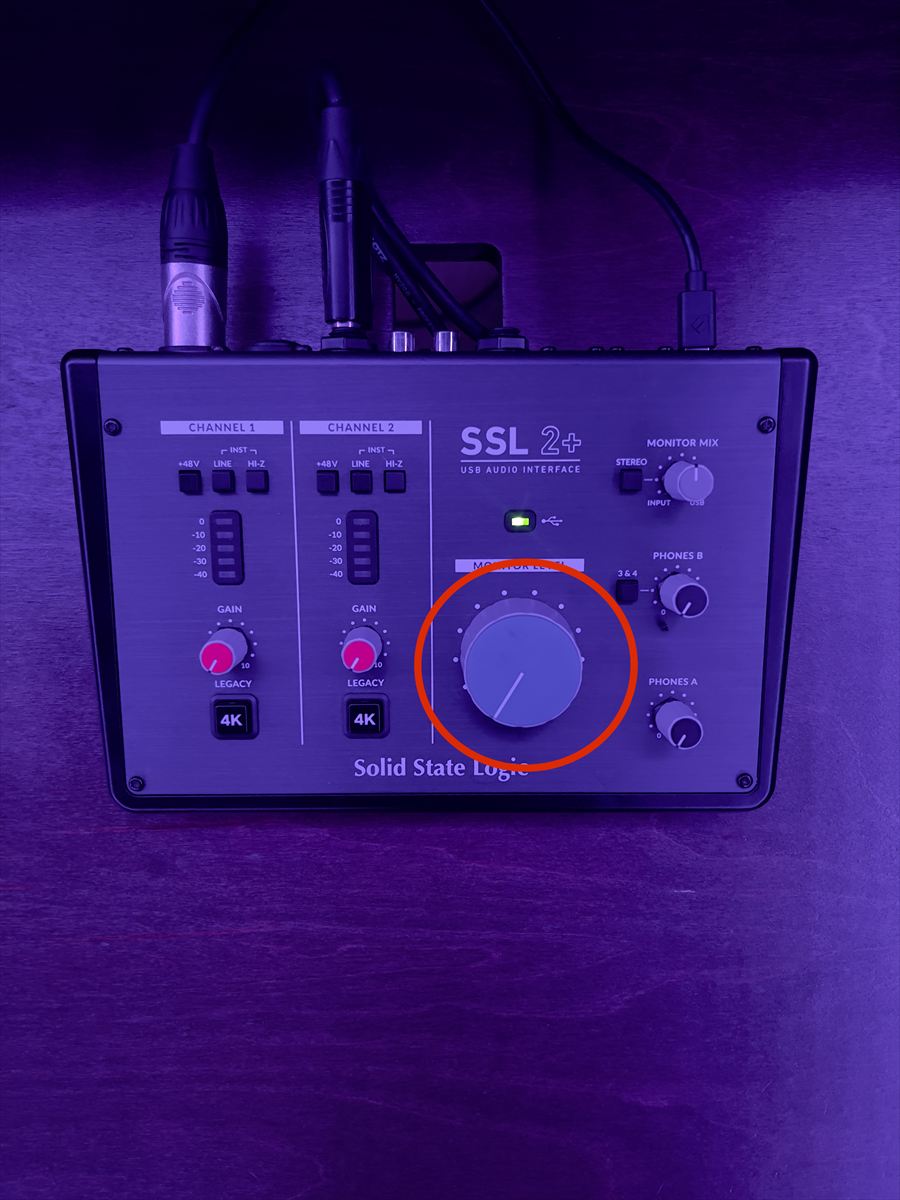
No sound from the microphone+
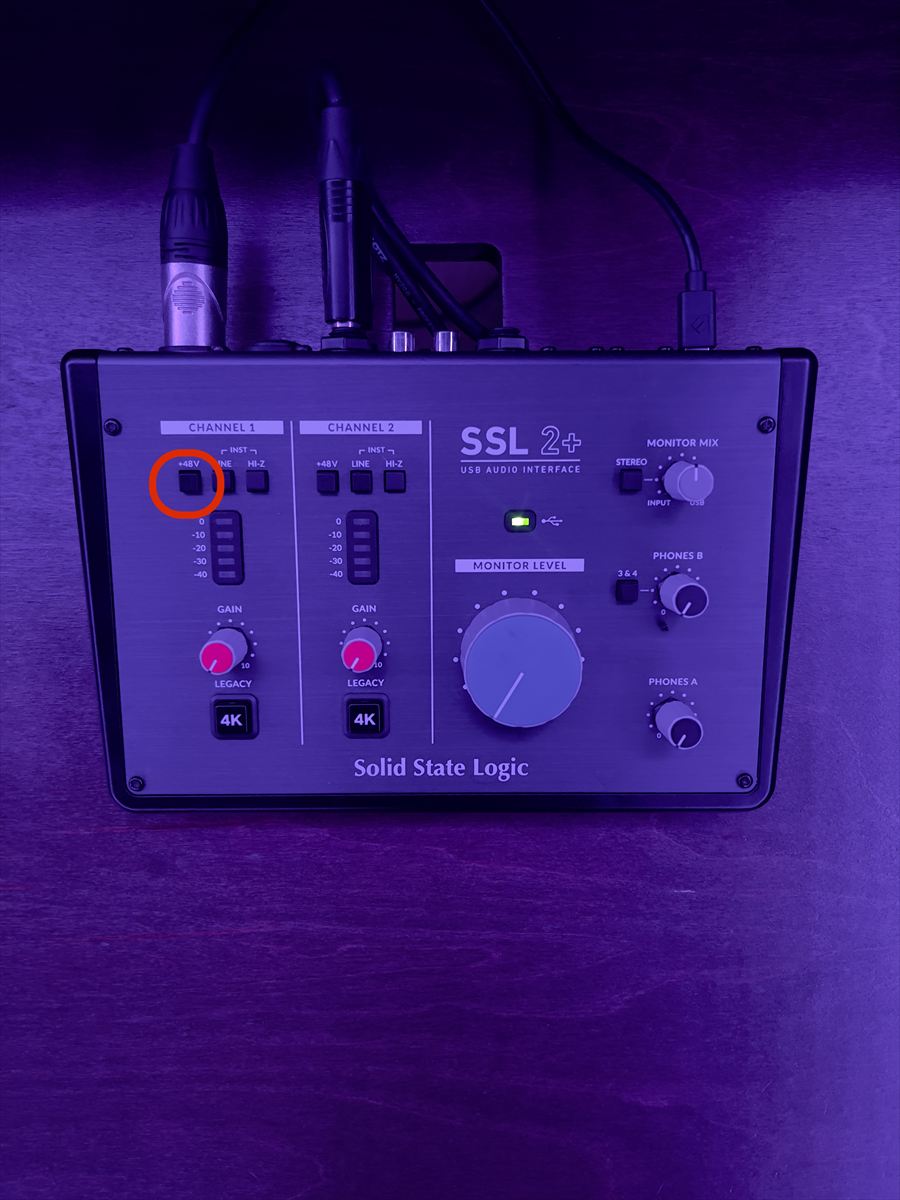
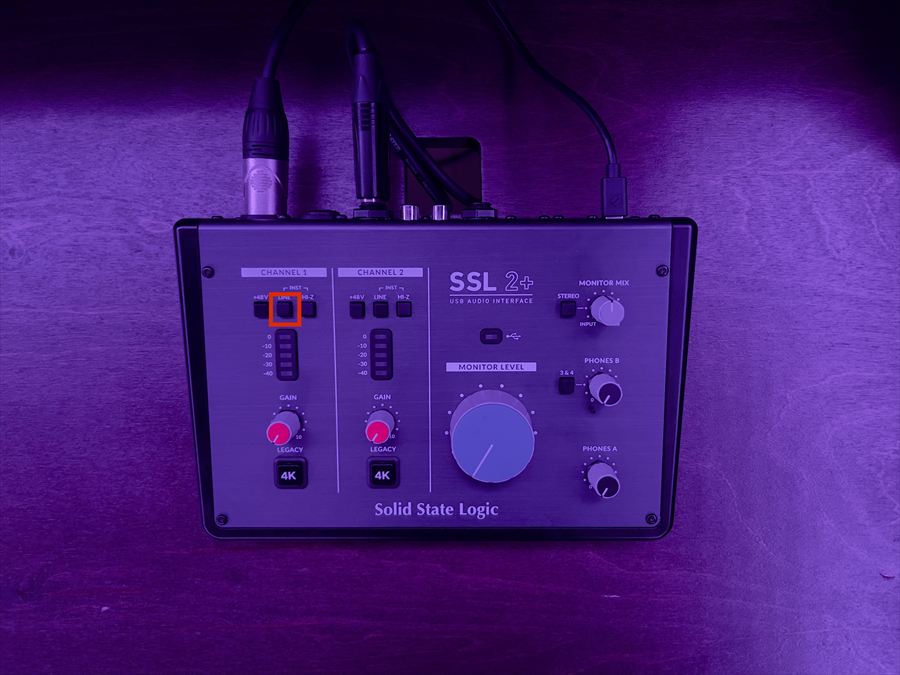

No sound from the monitors+
Sound in headphones but not the monitors means a monitor or cable issue. No sound anywhere points at the SSL or the DAW.
Interface or USB hub not showing up+
Crackle, latency, buzz or dead headphones+
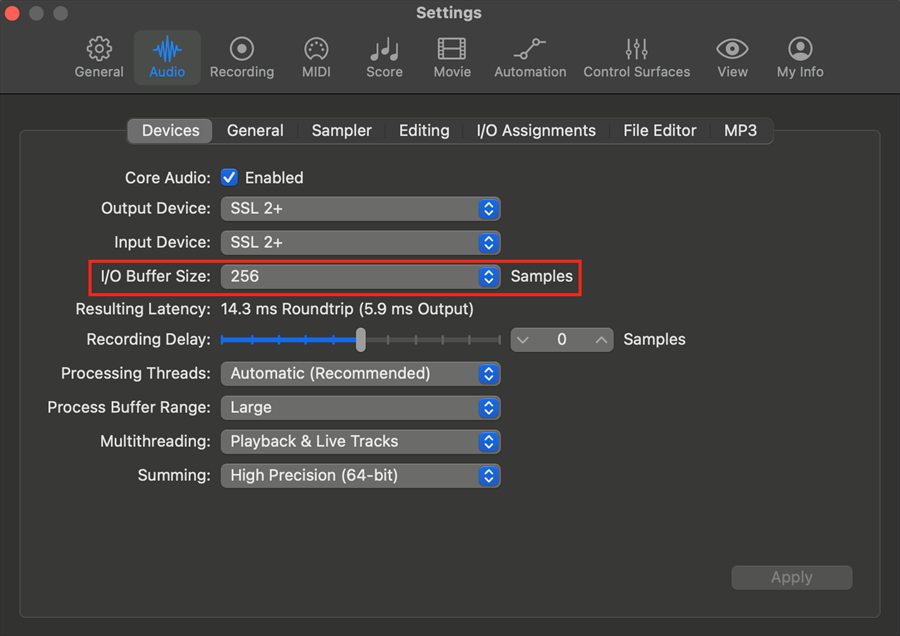
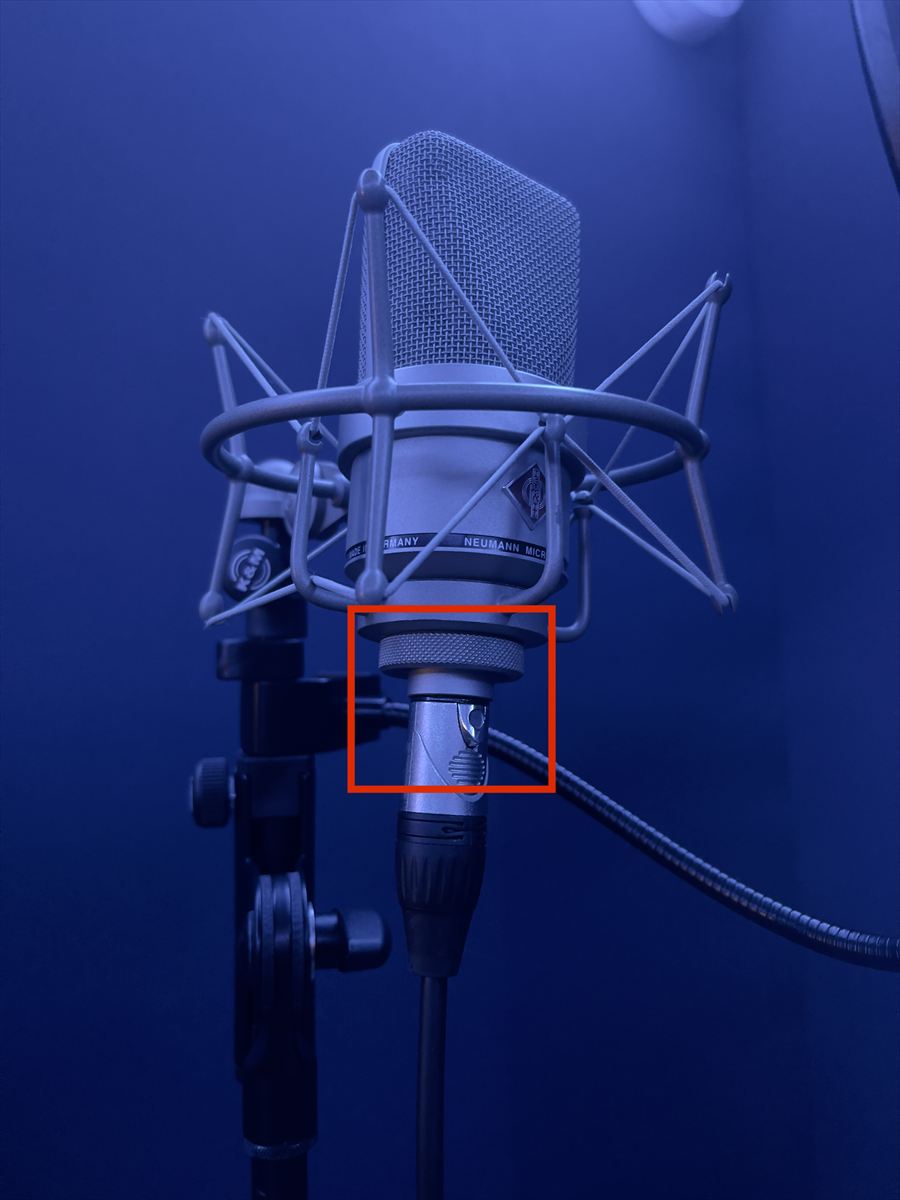
Mics, moving furniture, and switching off+
We have a Shure SM7B available on request, subject to availability — let the team know ahead of your session so we can check one's free.
Rearrange the room if it helps, then put everything back the way you found it before you leave.
Leave the equipment on — someone may be coming in right after you.
DJ rooms
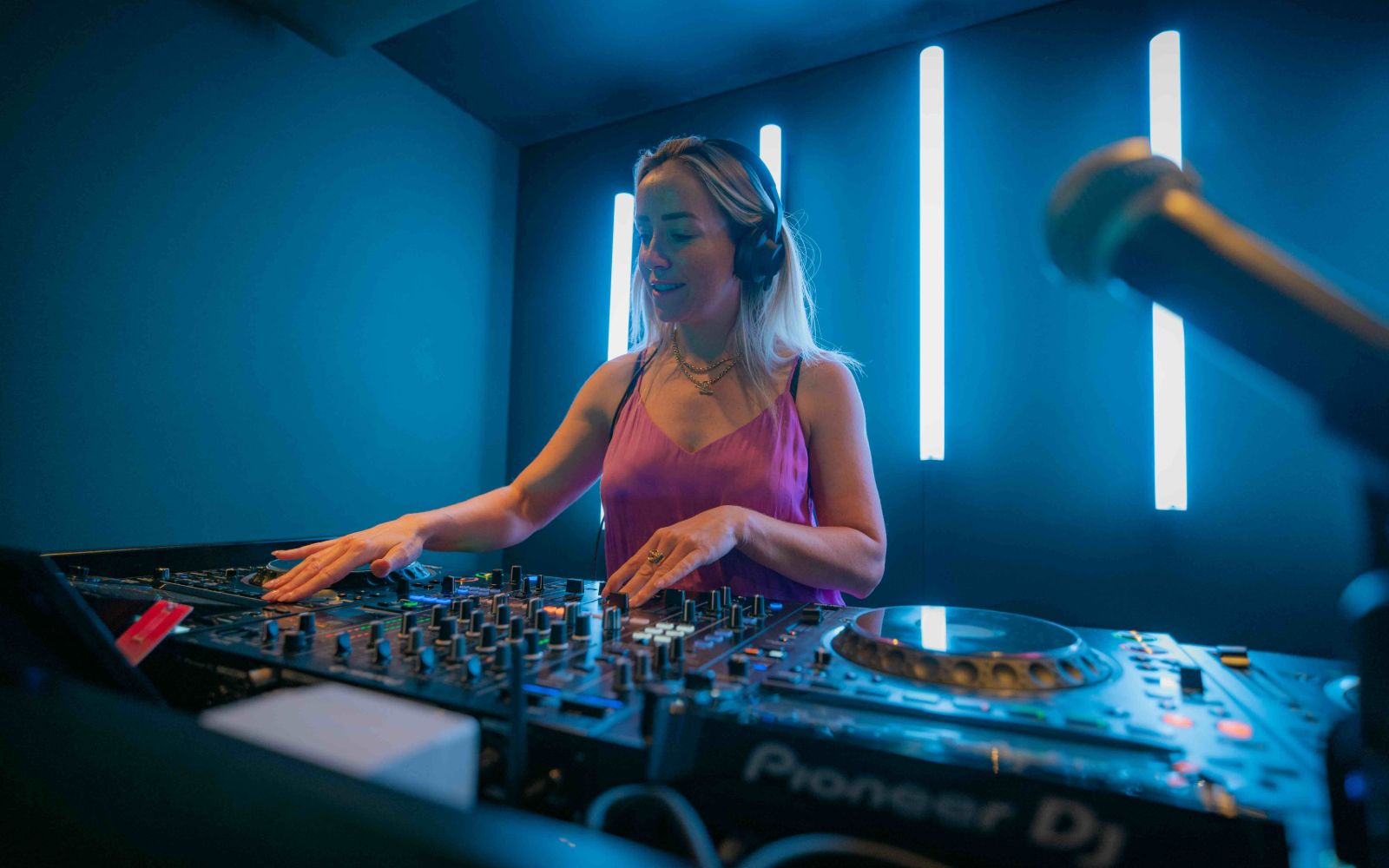
Prep before you arrive and you'll be straight on the decks.
What to bring+
Prep before you arrive+
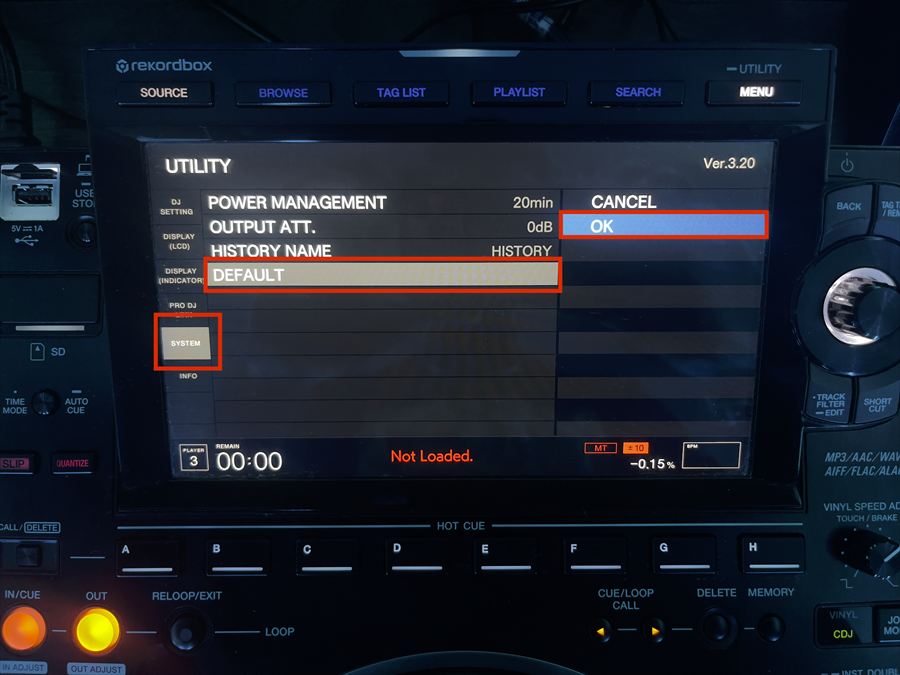
Use Pioneer's free Rekordbox software to prep in advance — it lets you make full use of the CDJs.
On a laptop, your machine connects through a USB hub or splitter to both CDJs and the mixer. Setup tutorials for Rekordbox, Serato and Traktor are all online.
Before you start your set+
Recording or streaming your set+
Plug your SSD into the computer at the right of the desk. In OBS, go to File › Settings › Output, find Recording Path, press Browse and pick a folder on your SSD. Play something and check for signal in OBS's Audio Mixer panel — the mixer's Booth Monitor knob controls this. Then press Start Recording, and Stop Recording when you're done.
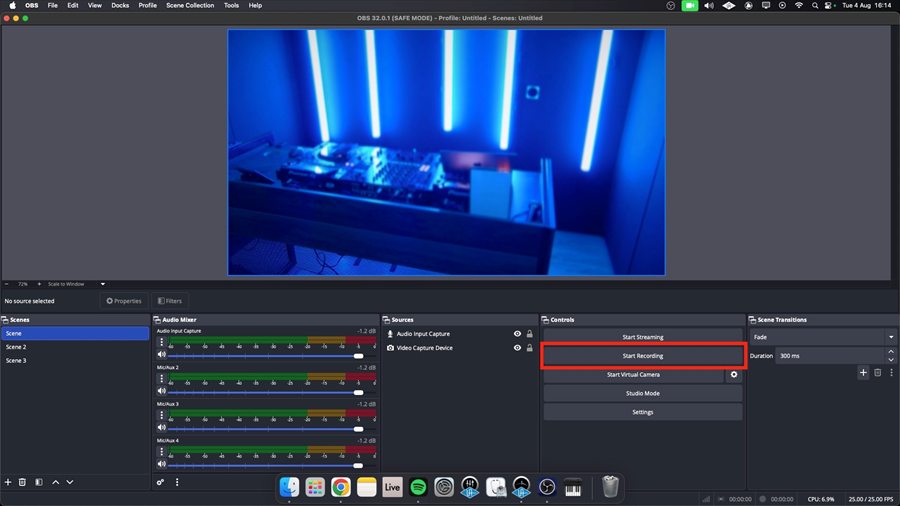
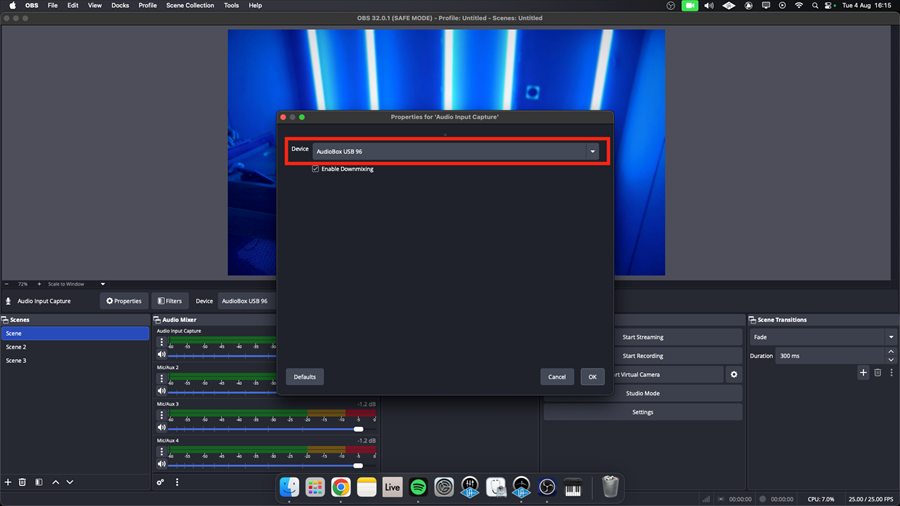
In OBS, go to File › Settings › Stream, pick your platform, then connect your account or enter your Stream Key. Check signal, press Start Streaming — and log out or unlink your Stream Key before you leave. Qube isn't responsible for accounts left signed in.
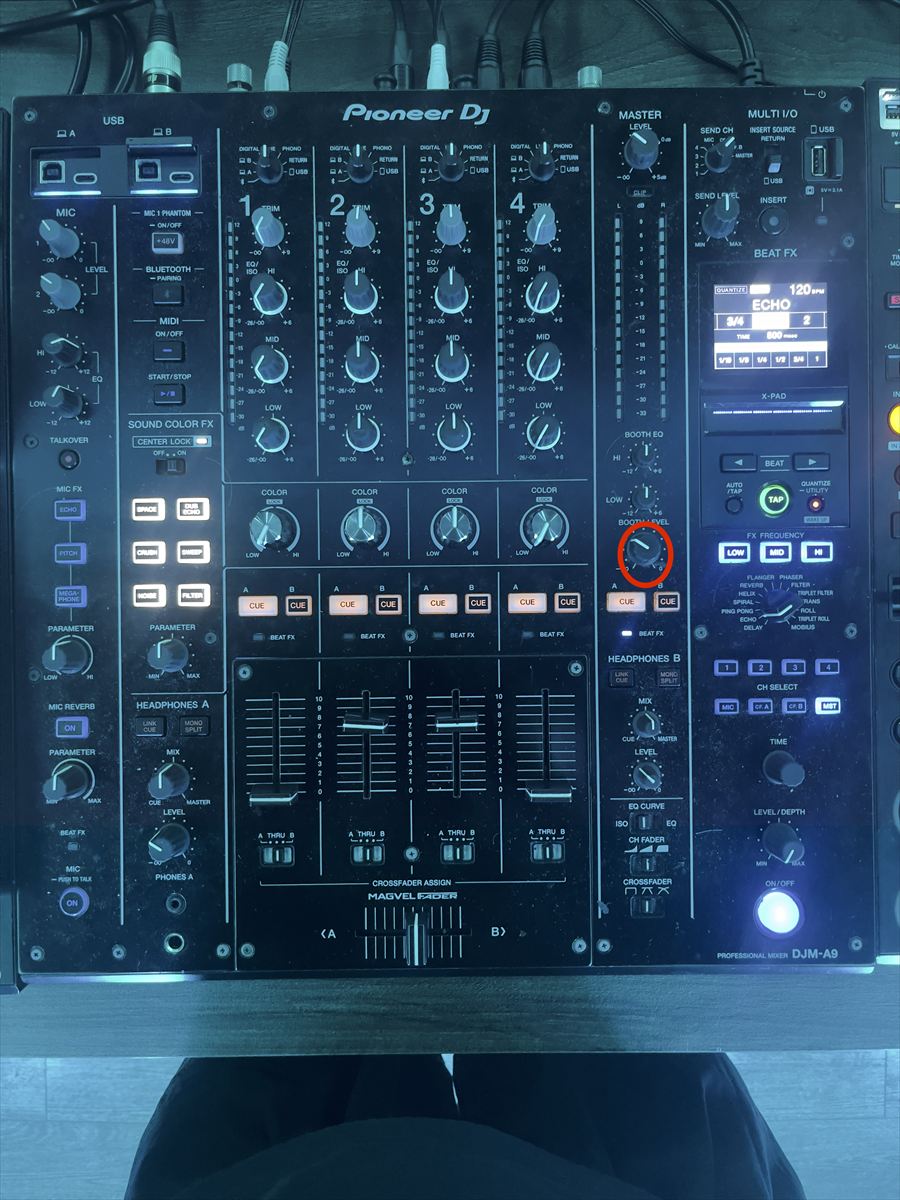
Always do a test recording first — files that didn't record properly can't be recovered.
Computer & OBS troubleshooting+

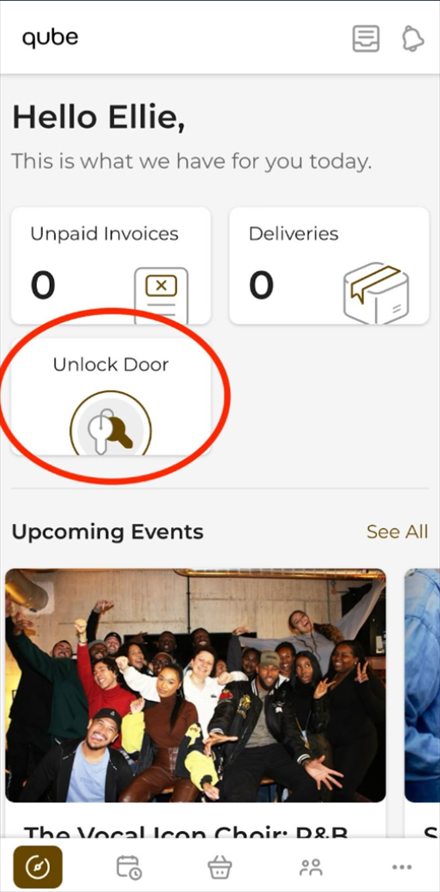
Your phone is your key at Canary Wharf, Hackney and Elephant.
You can use the Qube app to unlock the doors at these locations. Make sure Bluetooth is turned on, then return to the Dashboard (home page) using the button in the bottom-left corner of the app and tap Unlock Door. Hold your phone close to the door reader and the door will unlock.
Arriving after 7pm
Visiting after 7pm means you'll need an additional card for the out-of-hours side door.
Pick one up from reception any day between 10am and 7pm.
Can't get into your studio?
Have your session time, the name on the booking and the room number ready — our offsite service needs all three to grant access.
Hackney is a self-service site — there's no Community Team on the floor, but help is always close by.
07521 776869
10:00 – 18:00
Technical issues in the studio
If you experience a technical issue in the studios outside of staffed hours, simply scan the QR code displayed in the studio to access our out-of-hours technical support and troubleshooting guides.
Ask Quinn
If you need support, you can chat with our AI assistant, Quinn, via the Qube app or Member Portal. Quinn can help with a wide range of questions and requests, and if your query can't be resolved, it will be forwarded to a member of the team, who will follow up with you as soon as possible.
If you contact Quinn outside of staffed hours, your query will still be logged, and a member of the team will get back to you as soon as they're back on-site.
Locked out of the building or a studio? That's the out-of-hours access line, not Quinn.
5B Prince Edward Road
London E9 5LX
Numbers to know
Monitored during staffed hours — 9:30–19:00 weekdays, 10:00–18:30 weekends. This line can't grant access or give technical assistance — please only call in a genuine emergency.
Have your session time, the name on the booking and the room number ready.
Your monthly credits reload on the 1st of each month at midnight. They expire in two stages, so you get a little more flexibility.
Expires at the end of the month it's issued.
Expires at the end of the following month.
While credits are active you can book sessions up to 10 weeks ahead. Once they expire, unused credits are removed and can't be used.
Studios cost fewer credits between 22:00 and 11:00. Every room is priced differently depending on the space and its spec.
Each studio's credit cost sits on its image on the booking page in the app.
Open the Benefits section at the bottom of the app homepage.
Need more studio time?
Buy extra credit packs any time via the Shopping Basket in the Qube app. Packs are valid for three months from purchase.
Cancel a booking or move its start and end time in the Qube app up to one hour before the session begins.
Can't make the change yourself, or need a hand? Contact the Support Team via Quinn in the app.
Guests are welcome at your session. As the booking holder, it's your responsibility to make sure they follow Qube's House Rules.
Read the house rules
Book the studio for the full time you need. If you need longer mid-session, extend the booking in the app before it ends where you can.
If you can't update it in time, or simply forget, we do monitor studio overstays. Your booking is adjusted automatically to reflect the extra time and the credits are deducted retrospectively.
We'd encourage everyone to manage their own bookings wherever possible, so your account and studio usage stay accurate.
Not enough credits to cover the extra time? The overstay is charged in £ at the applicable hourly studio rate — which can be up to twice the standard member rate — and collected in your next billing period.
Submit the relevant request form at least 30 days before you'd like the change to take effect.
Once submitted, your request goes straight to the General Manager of your home site, who'll review it and be in touch to confirm the change or ask for anything else they need.
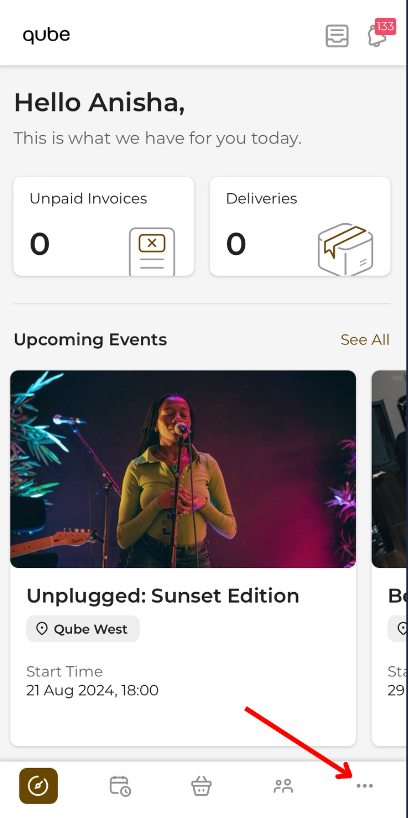
Hackney memberships include Multi-Site access automatically — no upgrade, no extra fee. As a Multi-Site member, switch between locations by tapping the three dots in the bottom-right of the app, selecting your current location, then choosing where you'd like to go.
All other sites
Unlock the doors with the app. Make sure Bluetooth is turned on, return to the Dashboard using the button in the bottom-left corner of the app, tap Unlock Door, and hold your phone close to the reader.
Qube Acton
Acton needs your physical black access card for entry — remember to bring it if you're visiting.
On your first visit, arrive before 17:30 so a member of the team can activate your card for this location.

Be considerate. Treat the studios and common areas as you would your home, and leave them as you found them — clean and tidy.
Be responsible. You're accountable for the safety and behaviour of everyone who comes with you.
No under 18s. We're a strictly 18-and-over venue.
Be respectful. Vacate the studio by the end of your confirmed booking. Set-up and pack-down are inside your booking window.
No food in the studios. The communal lounges are there for refreshments and hot food.
Be mindful. Close studio doors fully on the way in and out — for safety, and to keep sound bleed down.
Strictly no smoking or vaping inside the premises — please use the allocated smoking areas (the garden or in front of reception).
Report damage to a member of staff immediately.
Pets are allowed. Supervised at all times, and off the furniture.
We operate 24hr CCTV.
Leave on time. Overstay past your end time and your booking is adjusted automatically, then charged retrospectively.

Give the emergency procedures a read before your first session.
In the event of a fire or emergency, refer to the Fire Evacuation and Emergency Procedure.

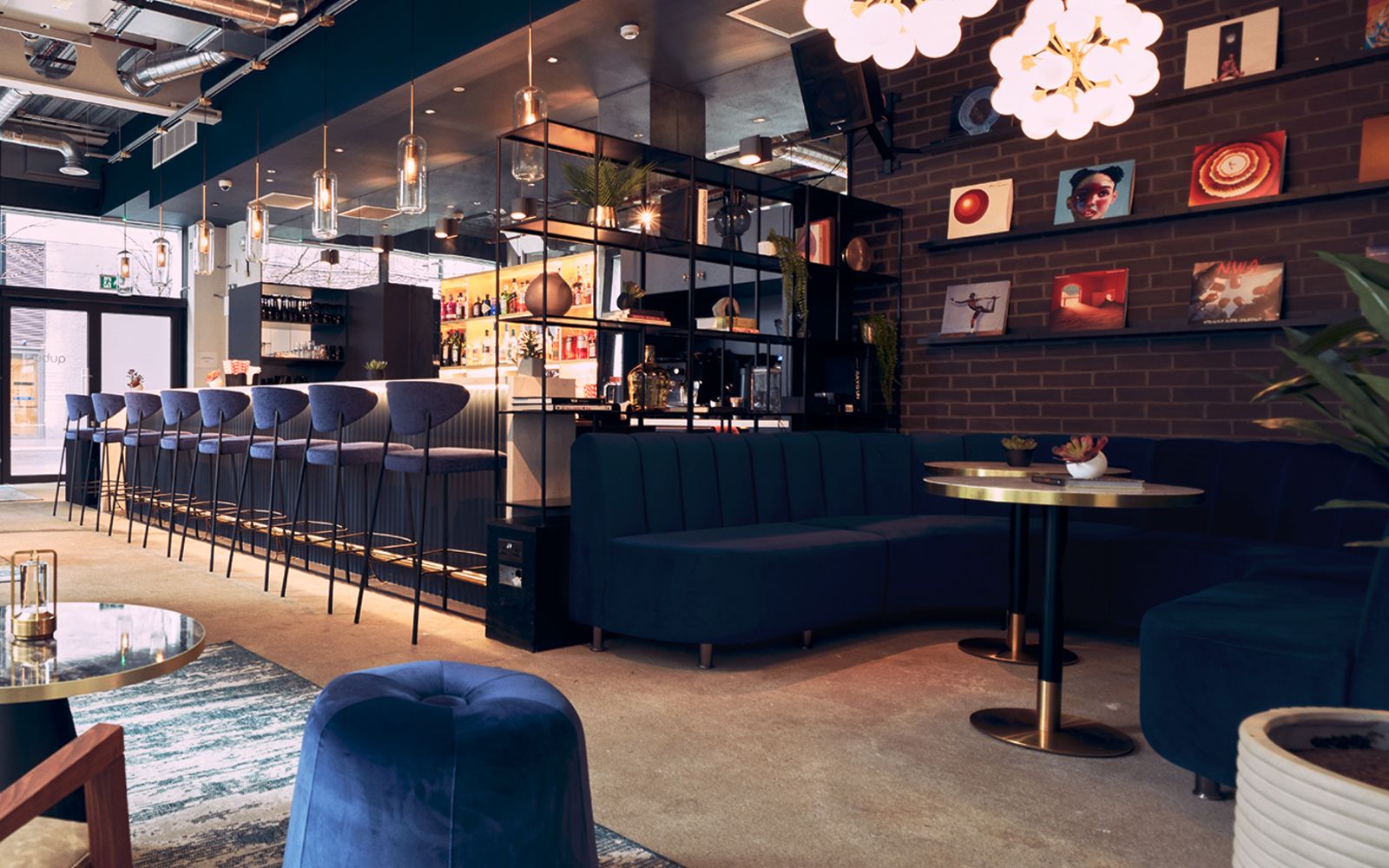
Your membership includes our programme of creative industry events across all Qube locations — whichever site you call home.
Playback listening sessions, masterclasses, networking nights, Meet Your Match and other industry moments — there's something on every month. Everything upcoming is listed on the app homepage, and the monthly events email carries the full schedule.
There are over 700 members in the Qube community. Introduce yourself, ask a question, share an opportunity or start something on the Community Discussion Board in the app.
Every Qube has a story.

Questions left, or want a little extra support? You're always welcome to book an onboarding session.
We'll walk you through the Qube app, how booking works, and the tips and features that get the most out of your membership.
Get in touch with the team to book an onboarding! Simply reach out via our in-app AI assistant Quinn.

If you have an exciting idea for an event or partnership, we'd love to hear from you!
For either type of enquiry, please include as much detail as possible, including your idea, preferred location, proposed dates, expected attendance, and any other relevant information. This helps our team review your enquiry and get back to you as quickly as possible.
For partnership opportunities or member event collaborations, please email
partnerships@theqube.comIf you'd like to host a private event at one of our Qube locations, please email
events@theqube.com
How do I book a studio?+
Log into the Qube app, tap the basket in the middle of the bottom bar, and choose your studio and time.
How far in advance can I book?+
Up to 10 weeks ahead, on every membership tier.
How do I cancel a booking?+
Open the booking in the Qube app, hit cancel and confirm. You can't cancel within an hour of the start time.
Will my credits be refunded if I cancel?+
If you cancel in the same month you made the booking, credits return to your account automatically. If the booking was made in a previous month, that month's allowance is no longer available, so there's no refund.
Can I get credits back if my session finishes early?+
No — bookings are final and can't be cancelled or amended once underway.
What happens if I overstay my booking?+
Let a member of staff know and credits will be deducted from your account to cover the additional time.
Where do I check my credit balance?+
In the Qube app — scroll to the bottom of your homepage to see what's remaining this month.
How do I buy extra credit packs?+
Tap the shopping basket in the app and select Buy a Product. Choose the pack you need and purchase — credits land on your account immediately and roll over for three months.
How do I register guests before a session?+
Add them via the Attendees section on the booking form. Tap Invite Attendees and enter their name, email and phone number.
How many guests can I bring?+
Our lounge and co-work space welcome up to 3 guests. For a studio, check the app for that room's guest limit.
Can I leave my guests at Qube if I go?+
No. You're responsible for your guests and should be with them at all times while on site.
What if we exceed the room capacity?+
You'll need to move to a studio that fits everyone, subject to availability — it isn't guaranteed. Plan sessions accordingly to avoid disruption on the day.
Can I book for a friend or client if I won't be there?+
No — your membership is for you alone. If you need multiple cards and access for clients, upgrade to the Partner tier.
What are the staffed hours across the sites?+
Qube Hackney is self-service with no staff on site, but reachable via Quinn in the app or the helpline (07521 776869), both monitored 10:00–18:00 every day.
Qube Acton is staffed 9:00–17:30 on weekdays and 10:00–18:30 at weekends.
Canary Wharf is staffed 9:30–19:00 on weekdays and 10:00–18:30 at weekends.
Qube Elephant is staffed 9:00–22:00 on weekdays and 10:00–18:00 at weekends.
Does my membership work across all Qube sites?+
Hackney members have multi-site access automatically, at no extra cost. Members at other sites can request the upgrade for an additional 10% per month. Multi-site members use their credits freely at any Qube site.
How can I put my account on hold?+
If you want to stay a member but won't use your monthly credits for 30 days or more, you can put your account on hold. Schedules change — this is designed to keep your membership wherever your career takes you.
Terms & conditionsI've lost my membership card — what now?+
Let a member of staff know. A £24 charge is added to your monthly invoice to cover the replacement.
How often are member events? Do I pay?+
Every site hosts at least one member event a month, included in your membership. Reserve tickets and see what's coming up in the Events section of the app.
Is there anywhere I can reach the community?+
Yes — post on the discussion board. It's a good place for site updates and for finding members looking to connect and collaborate.
How do I contact Qube staff via the app?+
You can get in touch via our in-app AI assistant Quinn. If Quinn can't help with your query, she'll push you through to one of the team to follow up and support.
Where can I see bookings, invoices and credits?+
Tap the compass icon at the bottom left of your screen for everything in one place.